


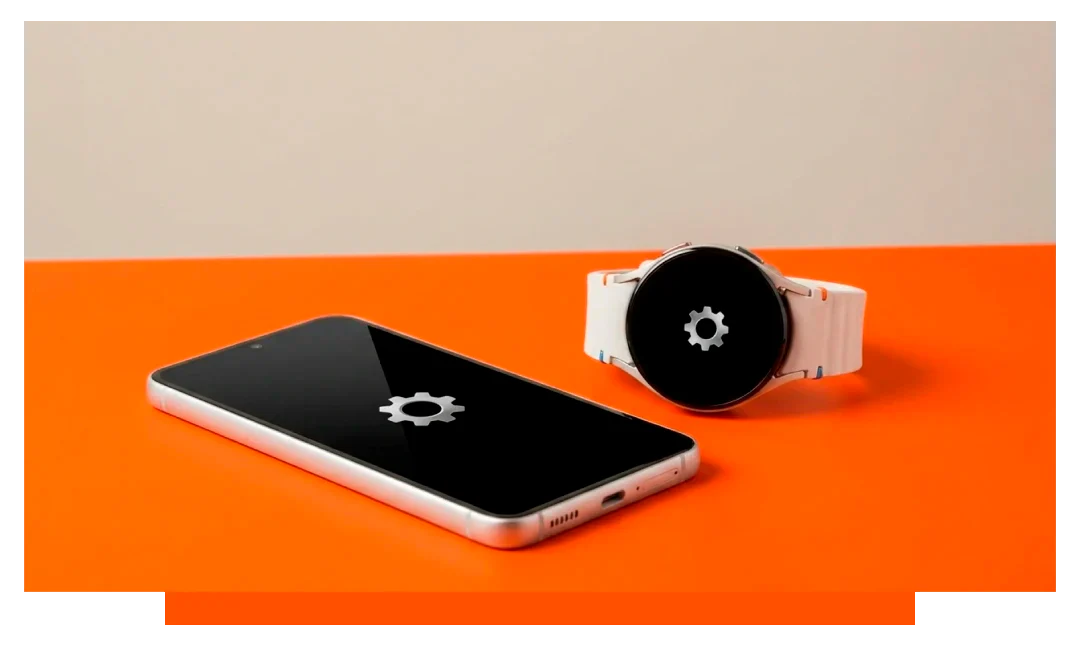
Your smartwatch usually fails to sync because Bluetooth is unstable, software is outdated, or app permissions are blocked. Power saving modes can also pause background data. Rebooting both devices, re-pairing, and updating firmware resolves most cases within minutes.
Why won’t my smartwatch connect to my phone?
Connection failures typically come from Bluetooth congestion, distance, or interference. Bluetooth has an effective indoor range of about 10 meters, which drops with walls and 2.4 GHz noise. Microwaves, routers, and gym equipment often saturate the band and cause retries.
Outdated firmware or app versions can break compatibility. A phone on a new OS can temporarily outpace your watch app until an update arrives. Even a single version mismatch can block background sync services.
Permissions are another common blocker. Health, location, notifications, and background activity must be granted for continuous syncing. Revoked permissions after an OS update often go unnoticed until data stops flowing.
Bluetooth and network realities
Bluetooth Low Energy prioritizes tiny packets to save power, which can stall large data bursts. Switching to Wi-Fi on supported models can speed larger syncs. Crowded apartment networks increase packet loss and latency.
Software and ecosystem constraints
Some watches require the brand app for complete sync. Companion apps manage encryption keys, health schemas, and cloud uploads. Removing or restricting the app can halt everything silently.
Quick checks before deep fixes
- Toggle Bluetooth off-on
- Restart watch and phone
- Disable power saver
- Open companion app
- Stay within 3 meters
How to fix smartwatch syncing issues?
Restart and refresh connections
Reboot both devices to clear stalled stacks. On the watch, turn Bluetooth off for 10 seconds, then on. Open the companion app and wait 60 seconds for an initial handshake.
Reset network and re-pair
Forget the watch in your phone’s Bluetooth settings, then re-pair from the brand app. This forces new encryption keys and cleans corrupted profiles. Keep the devices on chargers to prevent low-power throttling during setup.
Update firmware and apps
Check the watch firmware, companion app, and phone OS. Install updates over Wi-Fi for reliability - a full watch update can take 10 to 30 minutes. After updating, leave the app open to complete database migrations.
Review permissions and background access
Confirm health, notifications, contacts, calendar, and location permissions. Enable background app refresh or unrestricted battery usage for the companion app. Do not use data saver during initial syncs.
Model-specific guidance
Apple Watch 11 pairing tips
Ensure iPhone is on a compatible iOS version and watchOS is current. In the Watch app, verify Health access, Motion and Fitness, and background refresh are enabled. If you swap bands, browse our Apple Watch straps for secure fitting that does not obstruct sensors.
If iCloud Health is enabled, the first sync may be delayed while data consolidates. Keep the iPhone unlocked, Watch app open, and both devices on Wi-Fi. Hard resets should be last resorts because they remove eSIM and cards.
Accessories can affect charging alignment and sensor contact. Magnetic chargers and cases should be MFi compliant. Explore thoughtfully designed Apple Watch accessories if you need docks or bumpers that avoid sensor interference.
Samsung Galaxy Watch 8 pairing tips
Use the Galaxy Wearable app plus any required plugins. Confirm Notifications, Location, and Physical activity permissions in Android settings. Set the app to Unrestricted battery to prevent aggressive doze policies.
For Wi-Fi transfers, ensure 2.4 GHz networks are visible and auto connect is enabled. Avoid captive portals during updates. Reinstalling the Watch plugin often resolves half-paired states.
If you changed phones, back up the watch to the cloud before reset. Restore during setup to rebuild watch databases. Large health history can take 10 to 20 minutes to reindex.
Data that often refuses to sync
Health metrics and timing
Heart rate and steps trickle in near real time, but detailed workouts and GPS routes batch after activity. A 60 minute GPS workout can package tens of thousands of points. Allow idle time with the app open for heavy transfers.
Notifications, calls, and messages
Notifications require both app-level toggles and OS-level switches. Some messaging apps mirror content only when their desktop sessions are active. Dual SIM users should set a default line to avoid call handoff confusion.
Troubleshooting reference table
| Symptom | Likely cause | Quick fix | Apple Watch 11 note | Galaxy Watch 8 note |
|---|---|---|---|---|
| No connection at all | Corrupted pairing | Forget and re-pair | Use Watch app to pair | Pair via Galaxy Wearable |
| Only partial data | Blocked permissions | Re-enable Health access | Allow Motion and Fitness | Enable Physical activity |
| Slow sync on Wi-Fi | 2.4 GHz congestion | Move closer to router | Prefer known home SSID | Disable captive portal |
| Stops when screen off | Battery optimizations | Unrestrict companion app | Enable background refresh | Set to Unrestricted |
| Workouts missing GPS | Location denied | Allow precise location | Enable Location Services | Grant Always location |
Environmental and hardware factors
Interference and distance
Metal lockers, elevators, and gym machines reflect signals and create dead zones. Keep watch and phone within 3 to 5 meters during pairing. Avoid standing between two strong Wi-Fi access points during updates.
Battery health and charging
Low battery triggers power modes that pause background tasks. Keep both devices above 30 percent for large syncs. Use original or certified chargers to maintain stable power delivery.
When to reset and when to service
Reset only after you have tried updates, permission checks, and re-pairing. Back up the watch first to preserve eSIM, payment cards, and health data. Document error codes or timestamps to speed support diagnostics.
- Backup to cloud
- Record error messages
- Try safe mode
- Contact brand support
Advanced diagnostics for persistent issues
Logs and app state
Open the companion app and check sync or transfer logs if provided. Compare timestamps of the last successful upload. A gap longer than 24 hours indicates a stalled service or revoked permission.
Network profile hygiene
Remove orphaned Bluetooth entries that match your watch’s MAC suffix. Clear the app cache and sign back in to refresh tokens. On Wi-Fi, forget captive networks that demand browser authentication.
Frequently asked questions
Does distance impact sync even on Wi-Fi?
Yes, initial pairing and handshakes often use Bluetooth. Keep devices very close until the link is stable. After that, Wi-Fi can carry bulk data if supported.
Why do notifications arrive but health data does not?
Notifications use a lightweight channel, while health data needs broader permissions and background execution. Ensure Health, motion, and background refresh are all enabled. Keep the app whitelisted from battery optimization.
Can watch faces or third party apps block syncing?
A misbehaving app can monopolize CPU or network time. Remove the last added face or app and test again. Reboot the watch after uninstalling to clear caches.
How long should the first sync take?
Small histories finish in minutes, but multi gigabyte health archives can take an hour on busy networks. Plan for a full charge and stable Wi-Fi. Leave the app open to avoid OS throttling.
Will factory reset delete everything?
A reset erases local watch data unless backed up. Use cloud backup before wiping to restore settings and tiles. Re-enroll payments and cellular after the restore.
Conclusion
Your smartwatch is not syncing because of Bluetooth instability, outdated software, or missing permissions, often aggravated by battery saver rules and congested networks. Close proximity, updates, permission audits, and a clean re-pair resolve most failures quickly. If problems persist, back up, reset, and escalate with logs for brand support.




Leave a comment
All comments are moderated before being published.
This site is protected by hCaptcha and the hCaptcha Privacy Policy and Terms of Service apply.